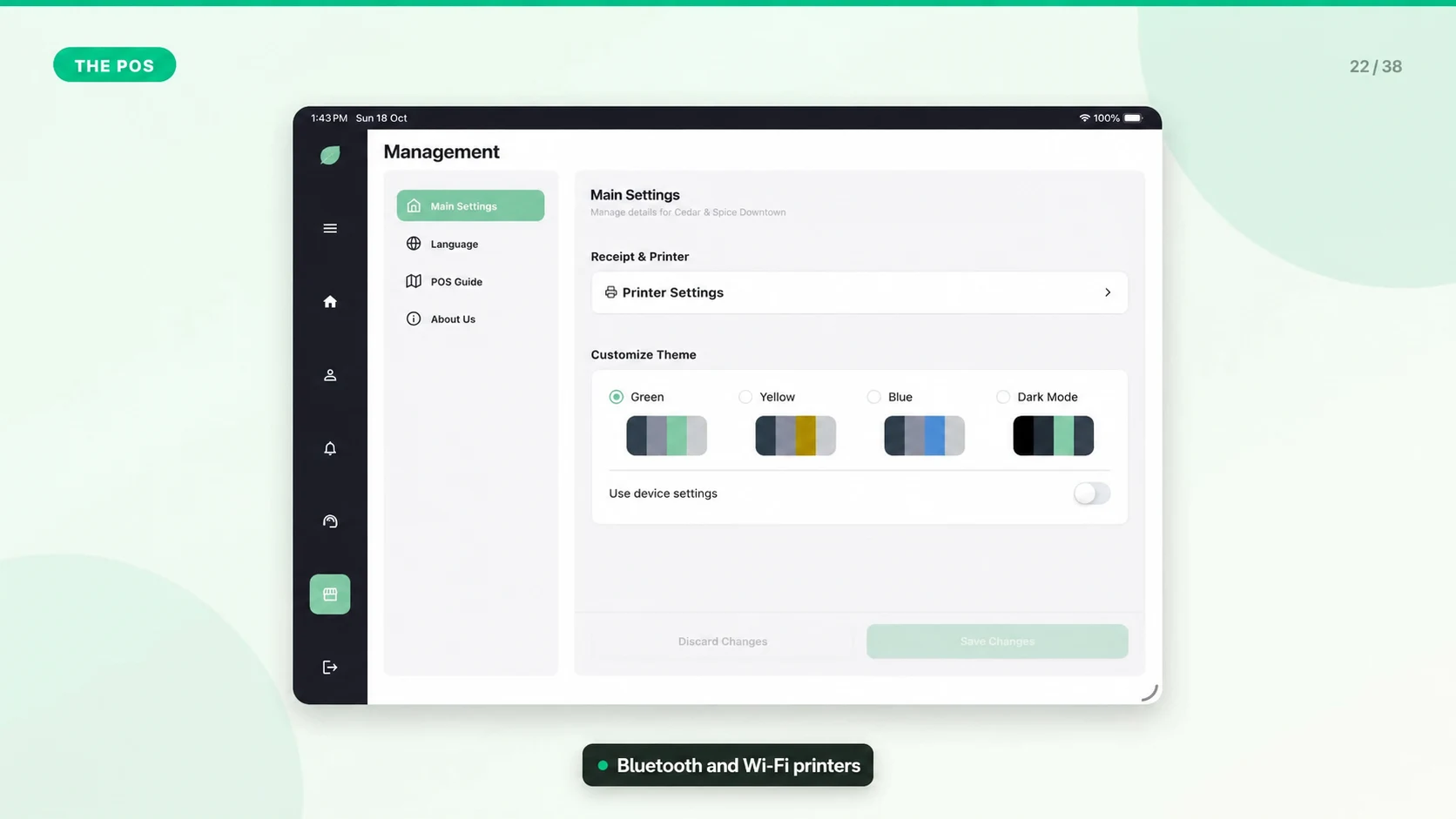
Printer Setup and Configuration
Use printer settings to make receipts match your business and to reduce staff friction at checkout.
Configure Receipt Details
- Restaurant or store name.
- Logo or receipt logo.
- Address and tax ID visibility.
- Receipt header and farewell message.
- Whether to show business description and other store details.
Configure the Printer
1. Connect the printer to the device or network.
2. Open Dashboard > Settings.
3. Review receipt and printer-related settings.
4. Save changes.
5. Print a test receipt.
Troubleshooting
- If the logo does not appear, confirm the receipt logo uploaded successfully.
- If the receipt has old details, refresh settings and try another test print.
- If nothing prints, troubleshoot power, connection, paper, and pairing first.