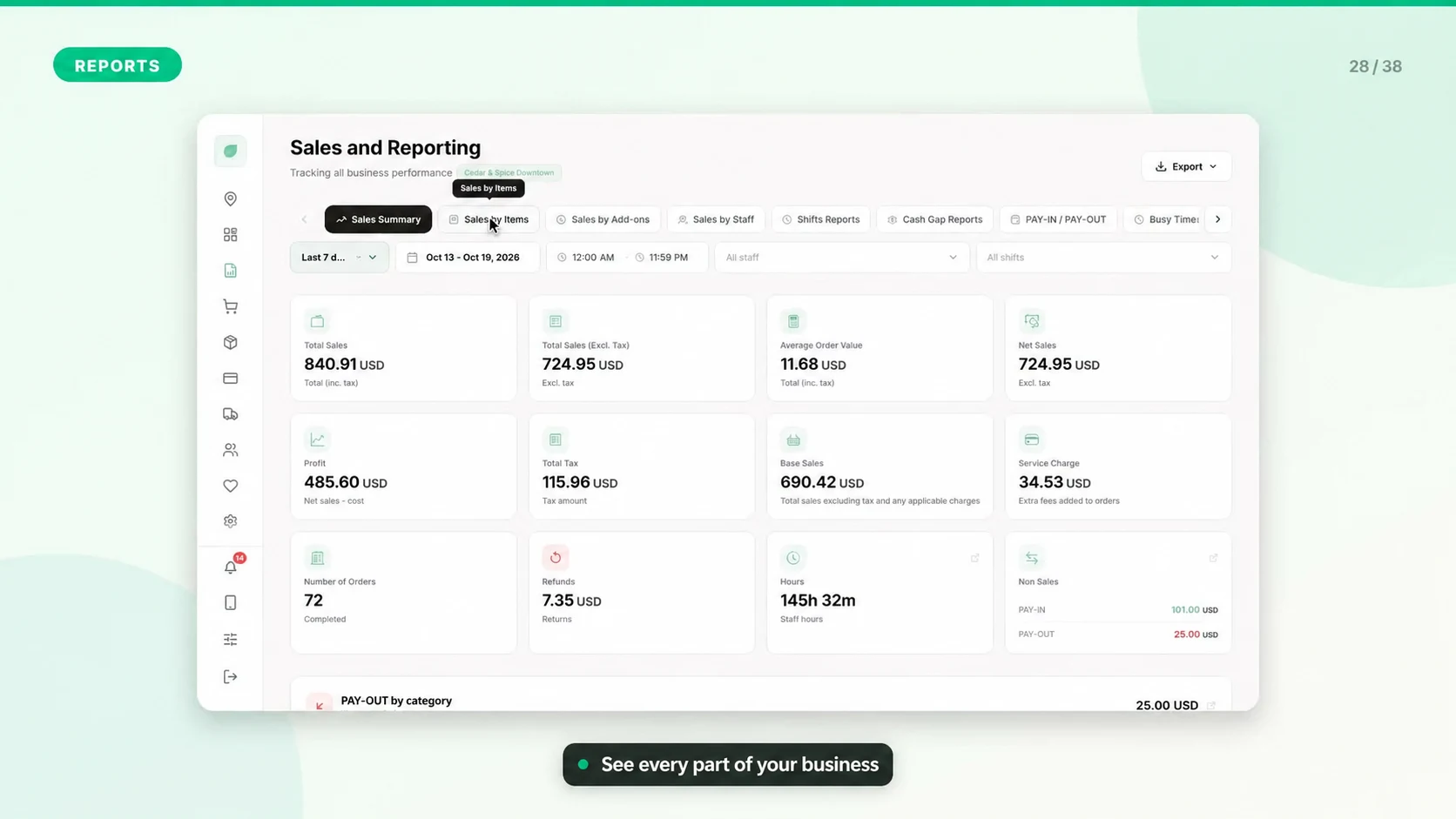
Compare Reports Without Mixing Dates or Branches
Before comparing totals, make sure both reports describe the same establishment, period, filters, and type of value. Many apparent discrepancies come from different scopes.
Set a Consistent Scope
1. Select the correct establishment or owner/brand overview.
2. Use the same start and end dates and check the establishment timezone.
3. Match employee, payment method, register, shift, and order-status filters where available.
4. Confirm pending POS orders have synced before comparing the dashboard with a device.
5. Compare completed sales, refunds, held orders, and imported history as distinct record types.
Know Which Total You Need
- Sales describes transactions and revenue under the report's definitions.
- Payments describes tender amounts and methods; split payments can appear under more than one method.
- Tax and discounts explain components of the final sale amount.
- Cash movement includes money added or removed outside a sale.
- Gross profit depends on recorded costs and should be checked against your cost setup.
Reconcile a Small Sample
Pick a few receipt numbers from one shift. Compare their items, discounts, tax, payments, and refunds with the report detail. Then compare the full period once the sample agrees.
Historical Imports
Check the import period, source totals, and how imported history is presented before comparing it with live POS sales. Avoid importing the same history twice and keep the source export for reconciliation.
Exports for Accounting
Export with the intended filters and retain the reporting period and currency. Compare payment provider settlements separately because fees and payout dates can differ from sales dates.
When to Ask for Help
Send the two report names, dates, filters, establishment, expected amount, actual amount, and example receipt numbers. This makes a discrepancy reproducible.