Create Staff Accounts and POS PINs
Give each employee their own access so sales, discounts, refunds, and cash movements can be traced to the right person. POS sign-in and back-office sign-in serve different purposes.
Create an Employee
1. Open Dashboard > Staff in the correct establishment.
2. Select Add Employee and enter the employee details.
3. Assign the role and access the employee needs. POS-only staff do not need shared owner credentials.
4. Set or generate the employee's six-digit POS PIN in the PIN section.
5. Save the employee. If a generated PIN is displayed, share it privately with that employee.
6. On a connected POS device, test sign-in with that PIN and confirm the role allows the intended actions.
POS Access vs Back-Office Access
- POS: Staff enter a six-digit PIN on a device already connected to the establishment.
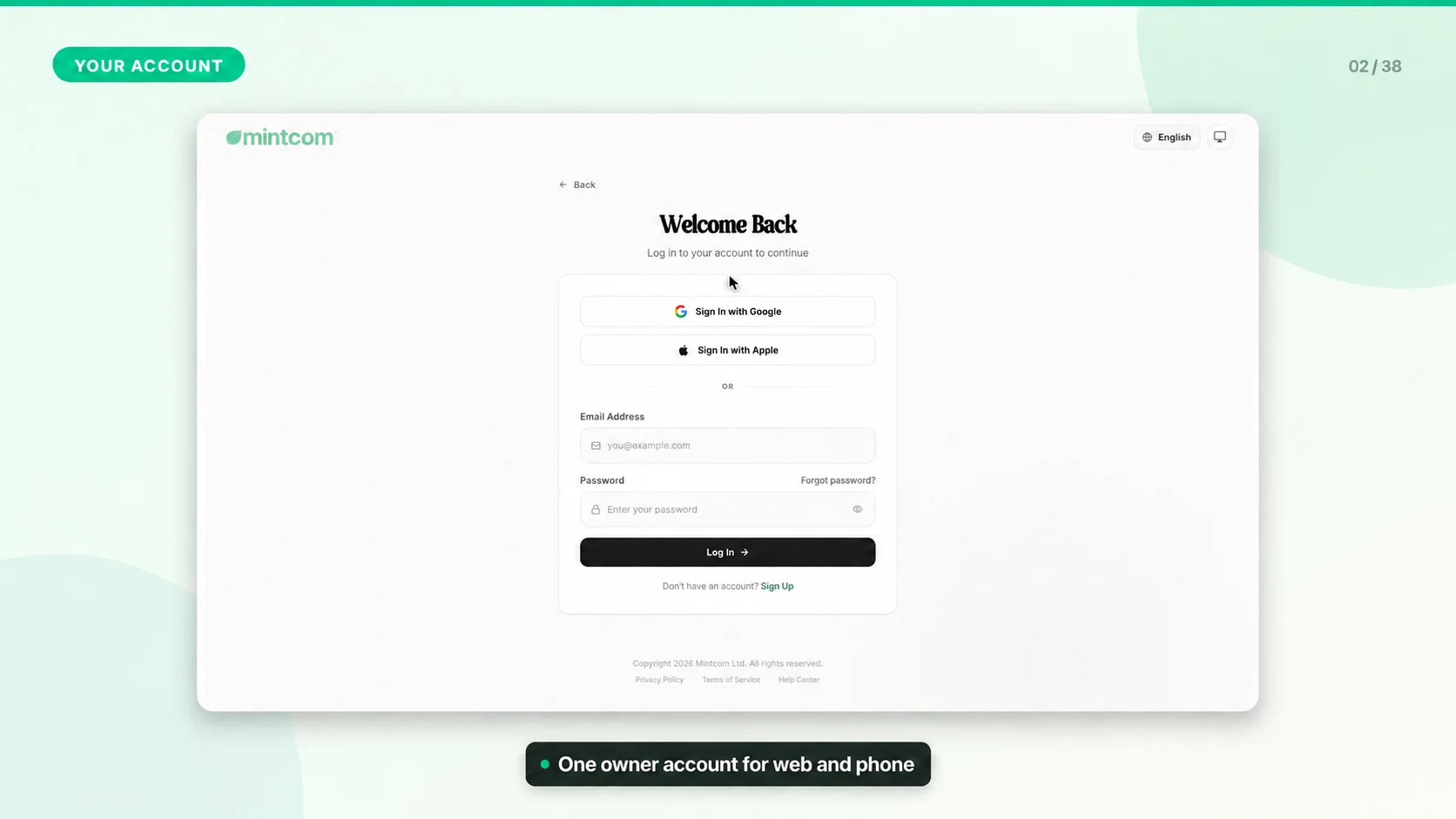
- Back office: Users with back-office access use their account credentials. A POS PIN is not a website password.
- Permissions: A valid PIN identifies the employee; their role still controls refunds, discounts, reports, and management tools.
If an Employee Cannot Sign In
Confirm the device is connected to the correct establishment, that the employee has a PIN, and that their access is active. An owner or authorized manager can reset a forgotten PIN from Staff. Repeated incorrect attempts can temporarily block sign-in; follow the message on screen.
Before the Next Shift
Remove access for departed employees, avoid shared PINs, and test sensitive actions with a staff account rather than an owner account.