Publish a QR Digital Menu for Your Restaurant
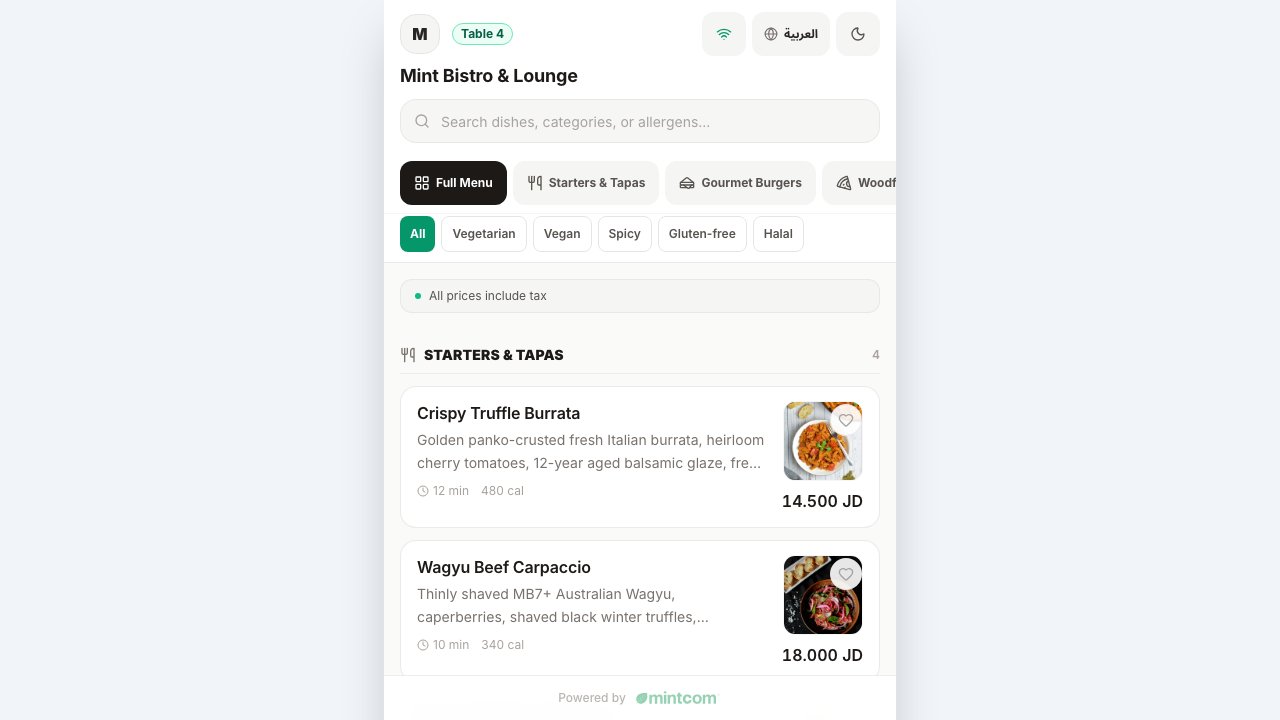
Create a customer-facing menu from your establishment's products, then preview it on a phone before placing QR codes on tables.
Prepare the Menu
1. Open Dashboard > QR Menu for the correct establishment.
2. Review Menu Settings and enable the public menu as appropriate.
3. Use Menu Items to check the products, categories, prices, photos, and descriptions visible to customers.
4. Review labels and allergen information carefully. Staff should verify ingredient information rather than assuming a label guarantees safety.
5. Choose the source language, available menu languages, default language, and single-language or language-switching display.
6. Save the settings and review the public preview.
Check Customer Actions
Menu browsing, ordering, and service calls are separate settings. Confirm which actions are enabled for your establishment and test them in the public menu. Do not promise online payment or order acceptance simply because the QR code opens successfully.
Print and Test the QR Code
1. Choose a QR style with strong contrast and sufficient empty space around the code.
2. Download or copy the QR output provided by the page.
3. Scan a printed sample using a customer's phone on mobile data, without a dashboard session.
4. Verify the business name, language switcher, photos, prices, and enabled actions.
5. Place the code where it remains clean, flat, and readable.
Keep It Current
After changing a product, price, translation, or availability, open the public menu again and verify the customer view. Keep a way for customers to ask staff about unavailable items or dietary requirements.
If the Menu Is Wrong
Check the active establishment, saved settings, item visibility, and the actual link encoded in the printed QR code before replacing signs.